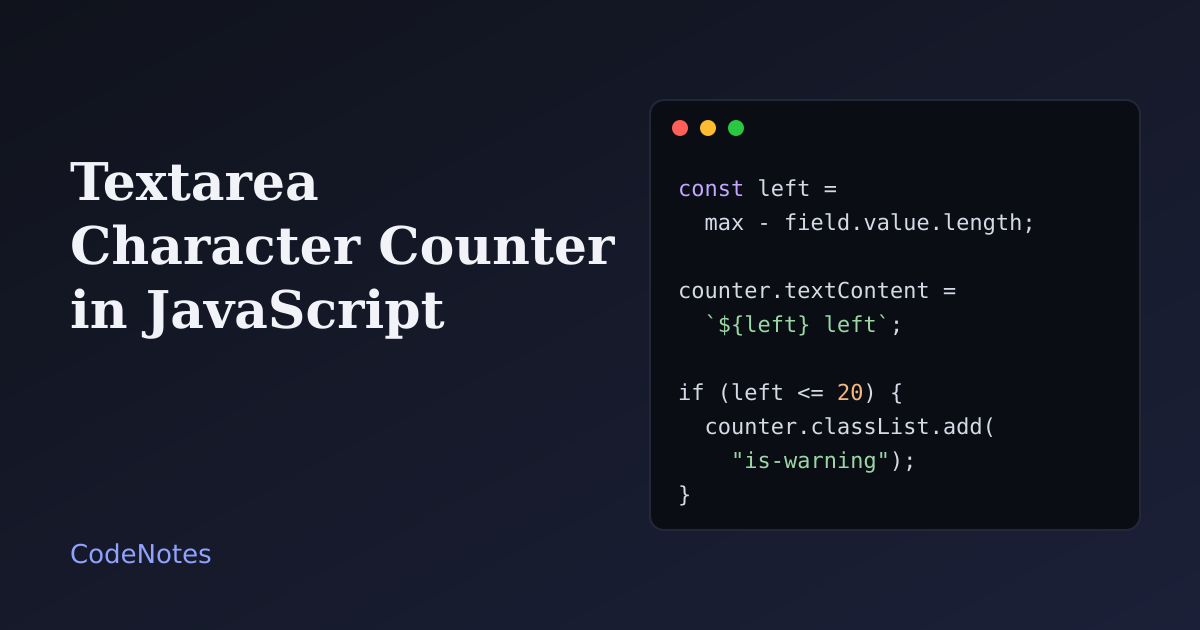
A textarea character counter shows how much room is left in a text field, so people can trim a message before it gets cut off. It is a few lines of code. The part that deserves care is what the counter does for people who cannot see it, because a counter that updates on every keystroke can turn a screen reader into a machine that never stops talking.
This tutorial builds a counter that is clear to look at, quiet to listen to, and honest about its limit.
What you will build#
A short bio field with a limit of 140 characters. The counter under it counts down, turns amber when 20 characters are left, and turns red at zero. Screen reader users hear a message only when they reach those two points, not after every letter. Type, then paste a long paragraph, to see what happens at the limit.
The frame is small, so open the demo in its own tab to try it at full size.
The markup#
<!-- In the <head>: <link rel="stylesheet" href="/style.css"> -->
<form class="form">
  <label class="label" for="bio">Short bio</label>
  <textarea class="textarea" id="bio" rows="4" maxlength="140" aria-describedby="bio-hint"></textarea>

  <div class="row">
    <p class="hint" id="bio-hint">Up to 140 characters.</p>
    <p class="counter" id="counter" aria-hidden="true">140 characters left</p>
  </div>

  <p class="visually-hidden" id="announce" role="status"></p>
</form>

<script src="/script.js" defer></script>
Three elements share the job:
maxlength="140"makes the browser stop accepting text at the limit. You get the enforcement for free, and the script only reports on it.- The hint is linked with
aria-describedby, so a screen reader reads "Up to 140 characters" when the field gets focus. It is static text, which is why it belongs there. Do not pointaria-describedbyat the counter, because it changes constantly. - The visible counter has
aria-hidden="true", so screen readers skip it. A separate, visually hiddenrole="status"paragraph carries the spoken messages. The next section shows when it speaks.
The JavaScript#
const field = document.querySelector("#bio");
const counter = document.querySelector("#counter");
const announce = document.querySelector("#announce");

const max = Number(field.getAttribute("maxlength"));
const WARN_AT = 20; // start warning when this many characters are left
let state = "ok";

function plural(n) {
  return `${n} ${n === 1 ? "character" : "characters"}`;
}

function update() {
  const left = max - field.value.length;

  // The visible counter changes on every keystroke. It is hidden from screen readers.
  counter.textContent = `${plural(left)} left`;
  counter.classList.toggle("is-warning", left > 0 && left <= WARN_AT);
  counter.classList.toggle("is-limit", left <= 0);

  // Screen readers hear a message only when the state changes, not on every key.
  const next = left <= 0 ? "limit" : left <= WARN_AT ? "warning" : "ok";
  if (next === state) return;
  state = next;

  if (next === "warning") announce.textContent = `${plural(left)} left.`;
  else if (next === "limit") announce.textContent = "Character limit reached.";
  else announce.textContent = "";
}

field.addEventListener("input", update);
update(); // also covers text the browser restores after a reload
The limit is read from the maxlength attribute, so it lives in one place. Change the number in the HTML and the counter follows.
update does two separate things. First it redraws the visible counter and its colors, every time. Then it works out which of three states the field is in: ok, warning or limit. It speaks only when that state is different from the last one. Typing from 100 to 120 characters says nothing. Crossing into the last 20 says "19 characters left." once. Reaching zero says "Character limit reached." once.
The listener is on input, not keyup. input fires for everything that changes the text: typing, pasting, dragging text in, dictation, and the undo shortcut. This is the same event the live search filter relies on, for the same reason.
The last line runs update() once at the start. A browser can restore what was in the field after a reload, and without that call the counter would claim 140 characters are left above a half-full box.
The CSS that matters#
.counter {
  font-variant-numeric: tabular-nums;
  white-space: nowrap;
}

.counter.is-warning {
  color: #9a5b00;
  font-weight: 600;
}

.counter.is-limit {
  color: #b42318;
  font-weight: 700;
}
tabular-nums gives every digit the same width, so the counter does not wobble as the numbers change. The states differ in weight as well as color, and the text itself says how many characters are left, so nobody has to rely on telling amber from red. Keep the text colors dark enough to read on your background: check them against a contrast checker, not by eye.
The demo also includes a .visually-hidden class for the status paragraph. It hides the text from the screen but keeps it in the accessibility tree. display: none would hide it from screen readers too, and then nothing would ever be announced.
Common problems and how to fix them#
Pasted text is cut off without warning#
With maxlength, the browser silently trims a paste to fit. Someone who pastes three paragraphs may not notice that the end is gone. If that matters, use a soft limit instead: remove maxlength, keep the number in a data-max attribute, let the counter go negative, and block the submit with a message:
const over = field.value.length - max;
field.setCustomValidity(over > 0 ? `Please shorten this by ${over} characters.` : "");
Call setCustomValidity on every check, with an empty string when everything is fine, otherwise the field stays invalid forever. The Constraint Validation API tutorial covers this in detail.
Emoji count as two characters#
maxlength and value.length count UTF-16 code units, and many emoji take two of them. A single thumbs-up uses two characters of the limit. [...text].length counts code points instead, and Intl.Segmenter counts what a person would call one character. The catch is that maxlength always uses the first method, so a counter based on another method will disagree with the browser. Pick one rule, and use the same rule on the server.
Line breaks count differently on the server#
In the browser, a line break is one character. When a form is submitted normally, it arrives at the server as two (carriage return and line feed). If the server enforces the same number strictly, text that passed in the browser can be rejected. Normalize line breaks on the server, or allow some room.
The screen reader talks all the time#
This happens when aria-live is put on the counter itself. Every keystroke becomes an announcement. Keep the counter silent with aria-hidden and use a separate status element that changes only when the state does. The password toggle tutorial uses the same idea: write important changes into a status element, and keep it in the HTML from the start.
The counter is wrong after a reload#
You forgot the first call to update(). Run it once when the script loads, as the last line above does.
When not to add a counter#
Add one when the limit is real: a bio field, an SMS, a meta description, a field with a database limit. A counter on a comment box with no real limit only creates pressure to write less. Where you do need one, show the limit before people start typing, and use the counter to confirm their progress, not to scold them.