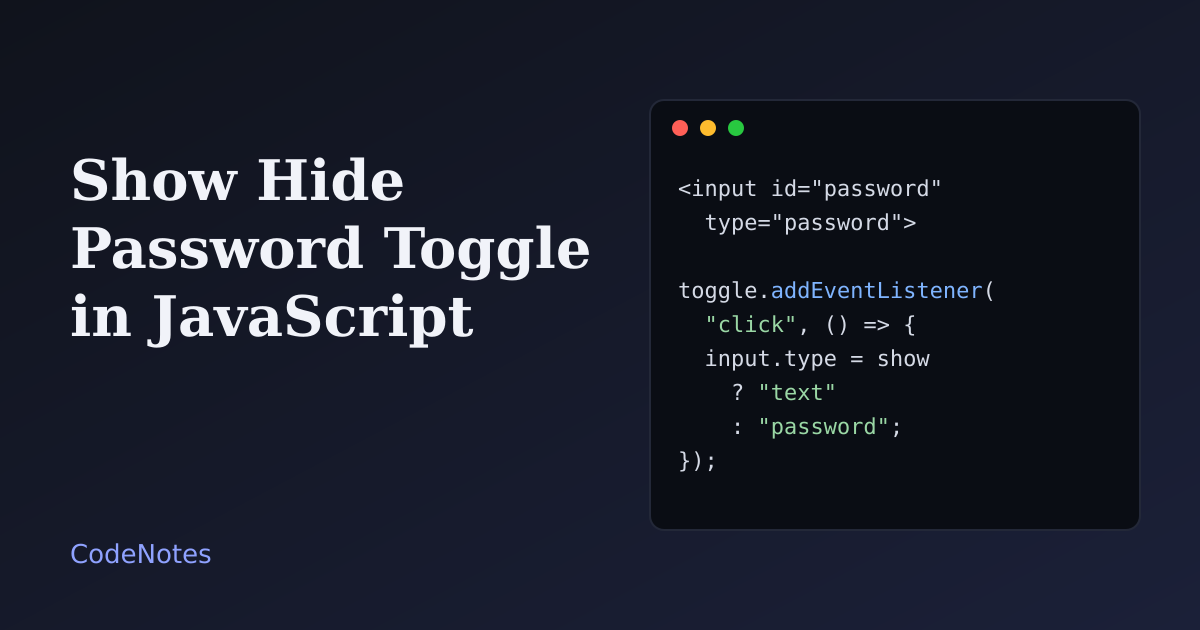
A show hide password toggle lets people check what they typed before they submit the form. It matters most on phones, where typos are common and there is no second field to repeat the password in. The feature is small, but a careless version can break password managers, confuse screen readers or leave the password on screen.
This tutorial builds a toggle that switches the field between hidden and visible, announces the change, warns when Caps Lock is on, and hides the password again on submit.
What you will build#
A sign-in form with an email field and a password field. A button inside the password field switches between "Show password" and "Hide password". Turn on Caps Lock while the field has focus and a hint appears under it. Submitting the demo form sends nothing anywhere.
The frame is small, so open the demo in its own tab to try it at full size.
The markup#
<!-- In the <head>: <link rel="stylesheet" href="/style.css"> -->
<form id="login" class="form">
  <label class="label" for="email">Email</label>
  <input class="input" id="email" type="email" autocomplete="username" required>

  <label class="label" for="password">Password</label>
  <div class="field">
    <input class="input" id="password" type="password" autocomplete="current-password"
           autocapitalize="none" spellcheck="false" required>
    <button class="toggle" id="toggle-password" type="button" aria-controls="password">Show password</button>
  </div>
  <p class="hint" id="caps-hint" aria-live="polite"></p>

  <button class="submit" type="submit">Sign in</button>
  <p class="status" id="status" role="status"></p>
</form>

<script src="/script.js" defer></script>
Several attributes here are doing real work:
type="button"on the toggle is essential. Inside a form, a button with no type is a submit button, and every click on "Show password" would submit the form.autocomplete="current-password"tells the browser and password managers which field this is, so they can fill it in. Usenew-passwordon a sign-up form.autocapitalize="none"andspellcheck="false"stop a phone keyboard from capitalizing the first letter or underlining the password as a misspelled word.aria-controlspoints at the field the button affects.
The JavaScript#
const form = document.querySelector("#login");
const input = document.querySelector("#password");
const toggle = document.querySelector("#toggle-password");
const capsHint = document.querySelector("#caps-hint");
const status = document.querySelector("#status");

function setVisible(visible) {
  input.type = visible ? "text" : "password";
  toggle.textContent = visible ? "Hide password" : "Show password";
  return visible;
}

toggle.addEventListener("click", () => {
  const visible = setVisible(input.type === "password");
  status.textContent = visible ? "Password is visible." : "Password is hidden.";
});

// Caps Lock is the most common reason a correct password is rejected.
function checkCapsLock(event) {
  const on = event.getModifierState && event.getModifierState("CapsLock");
  capsHint.textContent = on ? "Caps Lock is on." : "";
}

input.addEventListener("keydown", checkCapsLock);
input.addEventListener("keyup", checkCapsLock);
input.addEventListener("blur", () => {
  capsHint.textContent = "";
});

form.addEventListener("submit", (event) => {
  event.preventDefault(); // demo only: nothing is sent anywhere
  setVisible(false); // never leave the password showing after a submit
  status.textContent = "Demo only: nothing was sent.";
});
The whole trick is one property. Changing input.type between "password" and "text" makes the browser show or mask the same field, with the value, the focus rules and the autofill link all intact. There is no second input to keep in sync.
setVisible changes the type and the button label together, so the two cannot disagree. The label tells the truth about what the next click will do.
The status paragraph is a live region. When the label of a button changes, a screen reader does not always say so, so the same message is written as text. The toast notification tutorial explains why this region has to exist in the HTML before its content changes, or announcements get lost.
The Caps Lock check uses event.getModifierState("CapsLock"). It runs on both keydown and keyup, because platforms report the Caps Lock key at different moments. The hint is cleared on blur, since the state means nothing once the visitor has left the field.
On submit the script hides the password again. Nobody should leave a form with their password still on screen, and it keeps the field in the state password managers expect when they look at the form.
The CSS that matters#
.field {
  position: relative;
}

.field .input {
  padding-right: 7.5rem; /* room for the button */
}

.toggle {
  position: absolute;
  top: 50%;
  right: 0.35rem;
  transform: translateY(-50%);
  min-height: 2.25rem;
  background: transparent;
  border: 0;
}

.hint {
  min-height: 1.5rem; /* reserve the space, so nothing jumps */
}

input::-ms-reveal {
  display: none;
}
The button is positioned inside the wrapper, and the input gets extra right padding so a long password never runs under it. The hint keeps its height when empty, which stops the form from jumping when the message appears. The last rule hides the eye icon that Edge adds to password fields by itself. Without it, Edge users see two reveal buttons.
Common problems and how to fix them#
Clicking the button submits the form#
The button has no type="button". In a form, the default type is submit.
The browser or password manager does not offer to save the password#
Check autocomplete, and make sure the field is a real input with a label. Do not remove and recreate the input to switch modes. Changing type on the same element, as above, keeps the password manager's picture of the form intact.
Two eye icons appear in Edge#
That is the browser's own reveal button. Hide it with input::-ms-reveal { display: none; }, or remove your toggle and keep the built-in one. Having both is the one wrong answer.
A screen reader says nothing when the password is shown#
Do not rely on the label change alone. Write the new state into a live region, as the demo does. Avoid combining a changing label with aria-pressed, since that announces the state twice and sometimes contradicts itself ("Hide password, pressed").
The password stays visible on the next visit#
The state lives only in the page, so it resets on reload, and that is how it should be. Do not save the visible state in localStorage. A visitor on a shared computer would find their password showing the next time.
The toggle works but the rules are unclear#
A toggle shows what was typed. It does not tell the visitor what is allowed. Put length and format rules in the label or hint text, and check them with the Constraint Validation API so the error messages are specific and reach screen readers.
The form lives in a modal and focus gets lost#
Use the native dialog and let it manage focus. The dialog tutorial shows how showModal() traps focus and gives it back to the opener when it closes, which is exactly what a sign-in modal needs.
Where it stops#
A show hide password toggle improves a form's usability, not its security. Check the password on the server, send it over HTTPS only, and never log it. If you control the sign-in system, consider passkeys or a password manager prompt as the main route, with the toggle as the fallback for people who type by hand.