How to Build a Responsive Product Card Grid with Plain HTML and CSS
Build a clean, responsive product card layout with CSS Grid. Full source code, a live demo, and fixes for the layout bugs that trip people up.
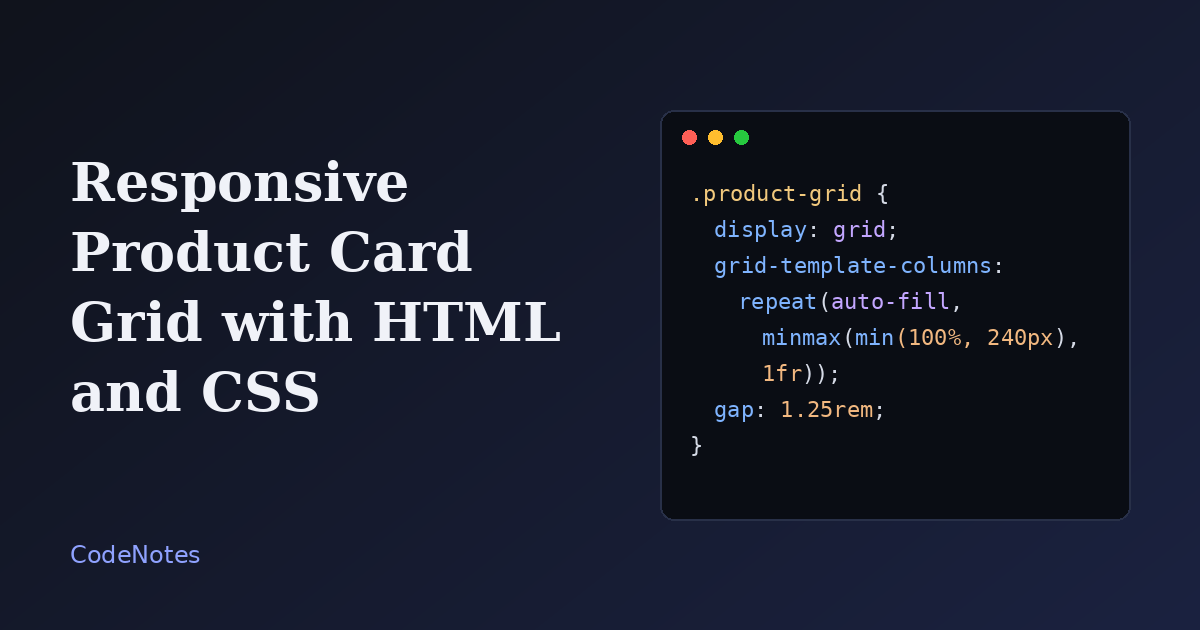
A product grid always looks fine on the laptop it was written on. Then it meets a 360px phone, or a category that contains exactly one item, and a single card stretches across the whole screen like a banner ad.
Both problems come from the same place: columns that are hard-coded instead of calculated. In this tutorial you will build a card grid where the browser works out how many columns fit, with no media queries and no JavaScript.
What you will build
Three product cards in a grid that adapts to its container. Each card has an image, a short tag, a name, a description, a price and a button. Open the demo in its own tab and drag the window narrower, and watch the columns rearrange.
The frame below is small, so open the demo in its own tab to see every breakpoint.
The HTML
Products are a list of similar things, so a list is the right element. Using ul and li also means screen readers announce "list, 3 items" before reading the cards, which is useful context for someone who cannot see the layout.
Here is one card. Repeat the li for every product.
<!doctype html>
<html lang="en">
<head>
  <meta charset="utf-8">
  <meta name="viewport" content="width=device-width, initial-scale=1">
  <title>Desk essentials</title>
  <link rel="stylesheet" href="/style.css">
</head>
<body>
  <main class="shop">
    <h1 class="shop__title">Desk essentials</h1>

    <ul class="product-grid">
      <li class="product-card">
        <div class="product-card__media">
          <img src="/images/stand.jpg" alt="Walnut monitor stand with a screen on top" width="400" height="300">
        </div>
        <div class="product-card__body">
          <span class="product-card__tag">New</span>
          <h2 class="product-card__name">Walnut Monitor Stand</h2>
          <p class="product-card__text">Lifts your screen to eye level and leaves room for a keyboard underneath.</p>
          <div class="product-card__footer">
            <span class="product-card__price">$49</span>
            <a class="product-card__button" href="/products/walnut-monitor-stand">View item</a>
          </div>
        </div>
      </li>
    </ul>
  </main>
</body>
</html>
Two details are easy to skip and worth keeping. The width and height attributes on the image let the browser reserve space before the file loads, so the page does not jump around. And the alt text describes the product, not the photo ("Walnut monitor stand"), which is what a shopper needs to hear.
The CSS
The stylesheet is short. Save it as style.css at the root of your site.
:root {
  --ink: #1f1d1a;
  --muted: #6c675f;
  --paper: #f7f7f5;
  --card: #ffffff;
  --line: #e2e0da;
  --accent: #2f46c8;
}

* {
  box-sizing: border-box;
}

body {
  margin: 0;
  font-family: system-ui, -apple-system, "Segoe UI", sans-serif;
  color: var(--ink);
  background: var(--paper);
}

.shop {
  max-width: 960px;
  margin: 0 auto;
  padding: 2rem 1.25rem;
}

.product-grid {
  list-style: none;
  margin: 0;
  padding: 0;
  display: grid;
  grid-template-columns: repeat(auto-fill, minmax(min(100%, 240px), 1fr));
  gap: 1.25rem;
}

.product-card {
  display: flex;
  flex-direction: column;
  background: var(--card);
  border: 1px solid var(--line);
  border-radius: 12px;
  overflow: hidden;
  transition: transform 0.2s ease, box-shadow 0.2s ease;
}

.product-card:hover {
  transform: translateY(-3px);
  box-shadow: 0 12px 28px rgba(31, 29, 26, 0.1);
}

.product-card__media img {
  display: block;
  width: 100%;
  aspect-ratio: 4 / 3;
  object-fit: cover;
}

.product-card__body {
  display: flex;
  flex-direction: column;
  flex: 1;
  padding: 1rem 1.1rem 1.2rem;
}

.product-card__name {
  margin: 0.6rem 0 0.35rem;
  font-size: 1.1rem;
  overflow-wrap: anywhere;
}

.product-card__footer {
  display: flex;
  align-items: center;
  justify-content: space-between;
  gap: 0.75rem;
  margin-top: auto;
  padding-top: 1rem;
}

.product-card__button {
  padding: 0.45rem 0.9rem;
  color: #fff;
  background: var(--accent);
  border-radius: 8px;
  text-decoration: none;
}

.product-card__button:focus-visible {
  outline: 3px solid var(--accent);
  outline-offset: 2px;
}
The tag and description styles are cosmetic, so they are left out here. The full file is in the demo.
How the grid picks the number of columns
Everything interesting happens in one line:
grid-template-columns: repeat(auto-fill, minmax(min(100%, 240px), 1fr));
Read it from the inside out. minmax(240px, 1fr) says each column must be at least 240px wide and may grow to share leftover space equally. repeat(auto-fill, ...) tells the browser to fit as many of those columns as the container allows. In a 960px container that gives three or four columns; on a phone it gives one. You never wrote a breakpoint.
Why auto-fill and not auto-fit
The two keywords behave the same until a row is not full. With auto-fit, empty columns collapse to zero width and the cards that exist grow to fill the row, so a category with one product gets one giant card. With auto-fill, the empty columns keep their size and the lone card stays card-sized. For a shop, where you cannot control how many items a category has, auto-fill is the safer choice.
A container that does not run edge to edge
The .shop wrapper caps the width at 960px and centers it. Without that cap, a wide monitor would line up six or seven cards in a thin strip and every card would be hard to scan. Limiting the container, not the screen, keeps the grid readable at any size.
Details that make it feel finished
The hover lift is decoration, so it only moves the card by a few pixels and never changes layout: transform does not push the neighbors around. The part that matters more is :focus-visible. Keyboard users get a clear outline on the button, mouse users do not see it on click.
One accessibility improvement is worth making on a real shop: when every button says "View item", a screen reader reading the links out of context hears the same words three times. Add an aria-label such as View Walnut Monitor Stand to each link and the problem disappears.
Common problems and how to fix them
The buttons sit at different heights
Descriptions are rarely the same length, so the footers drift up and down from card to card. The fix is already in the code above. The card is a flex column, the body is flex: 1 so it fills the card, and the footer has margin-top: auto, which pushes it to the bottom of whatever space is left.
Images look stretched or squashed
This happens when photos have different proportions and the CSS only sets a width. Give the image a fixed aspect-ratio and use object-fit: cover, so every photo is cropped to the same shape instead of being distorted.
The grid scrolls sideways on small phones
If you write minmax(240px, 1fr) without the min() wrapper, a container narrower than 240px forces the column to overflow. min(100%, 240px) caps the minimum at the container width, which removes the horizontal scrollbar.
A long product name breaks out of the card
A single long word, such as a model number, does not wrap by default. overflow-wrap: anywhere on the name allows the browser to break it when there is no other option.
The stylesheet does not load when I open the file
The link /style.css starts from the site root. If you double-click index.html and open it straight from your disk, the browser looks for the file at the root of your drive and finds nothing. Serve the folder instead, with npx serve or the Live Server extension in VS Code, and the path resolves the way it will in production.
Where to go from here
Change 240px to 200px for a denser catalog, or to 300px for fewer, larger cards. The rest of the layout adapts on its own. If you later add filters or sorting, the grid does not care how many cards it receives, which is the real advantage of letting the browser do the counting.