Responsive Navigation Bar with a Mobile Menu: HTML, CSS and a Little JavaScript
Build a responsive navbar that collapses into a menu button on phones. Accessible toggle, keyboard support, full source code and fixes for the usual bugs.
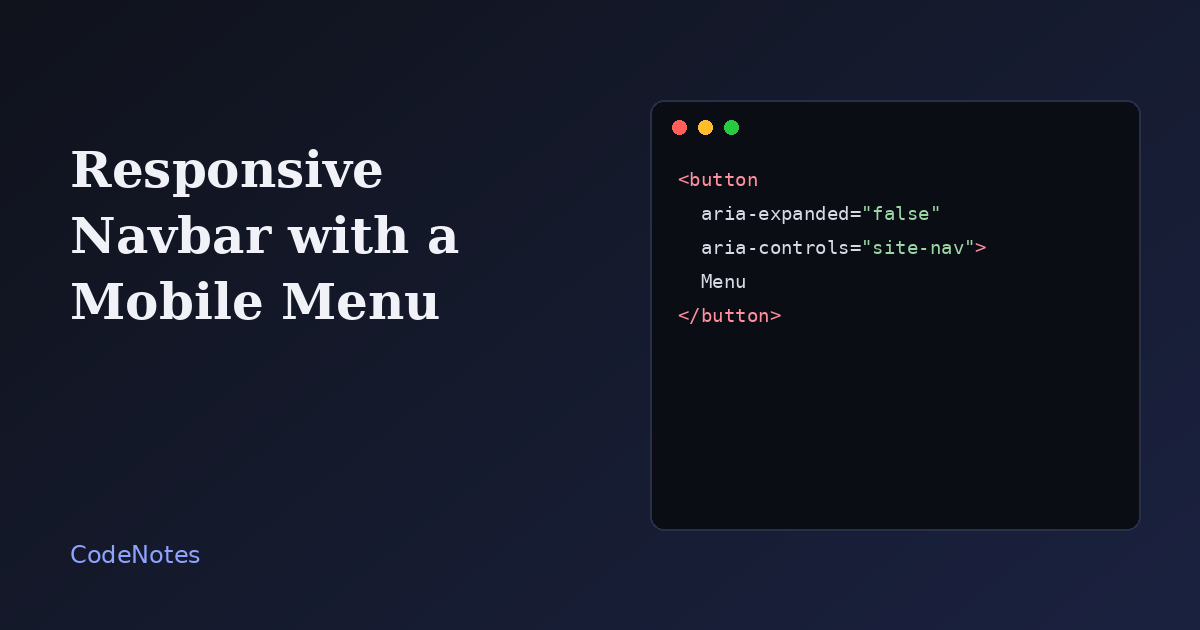
Mobile menus rarely fail on the first click. They fail on the second visit: the menu is still open after you rotate the phone, the button says "Close" while the menu is hidden, or a keyboard user tabs into links they cannot see.
Almost every one of those bugs has the same root cause, which is state stored in two places. This version keeps a single source of truth and updates everything from one function.
What you will build
A header with a logo and four links. Above 700px wide the links sit in a row. Below it they hide behind a Menu button. Open the demo in its own tab and resize the window to see both layouts.
The frame is small, so open the demo in its own tab to try it at full size.
The markup
<!-- In the <head>: <link rel="stylesheet" href="/style.css"> -->
<header class="site-header">
  <div class="bar">
    <a class="logo" href="#">Fieldnotes</a>

    <button class="nav-toggle" type="button" aria-expanded="false" aria-controls="site-nav">Menu</button>

    <nav class="site-nav" id="site-nav" aria-label="Main">
      <ul>
        <li><a href="#" aria-current="page">Home</a></li>
        <li><a href="#">Articles</a></li>
        <li><a href="#">About</a></li>
        <li><a href="#">Contact</a></li>
      </ul>
    </nav>
  </div>
</header>

<main class="page">
  <h1>Resize the window</h1>
  <p>Below 700px the links collapse behind a button. Above it they sit in a row.</p>
</main>

<script src="/script.js" defer></script>
The toggle is a real button, not a styled div, so it is focusable and responds to Enter and Space for free. Two attributes describe it to assistive technology: aria-controls points at the menu it affects, and aria-expanded says whether the menu is currently open. The nav gets an aria-label so a screen reader can tell it apart from other navigation on the page, such as a footer menu.
aria-current="page" on the active link does two jobs. It tells screen readers which page the visitor is on, and the stylesheet reuses it as the hook for highlighting.
The CSS
:root {
  --ink: #1f1d1a;
  --line: #dfddd6;
  --accent: #2f46c8;
  --paper: #f7f7f5;
}

* {
  box-sizing: border-box;
}

body {
  margin: 0;
  font-family: system-ui, -apple-system, "Segoe UI", sans-serif;
  color: var(--ink);
  background: var(--paper);
}

.site-header {
  background: #fff;
  border-bottom: 1px solid var(--line);
}

.bar {
  position: relative;
  display: flex;
  align-items: center;
  justify-content: space-between;
  max-width: 960px;
  margin: 0 auto;
  padding: 0.75rem 1.25rem;
}

.logo {
  font-weight: 700;
  color: var(--ink);
  text-decoration: none;
}

.nav-toggle {
  padding: 0.45rem 0.85rem;
  font: inherit;
  color: var(--ink);
  background: #fff;
  border: 1px solid var(--line);
  border-radius: 8px;
  cursor: pointer;
}

.site-nav {
  display: none;
  position: absolute;
  top: 100%;
  left: 0;
  right: 0;
  background: #fff;
  border-bottom: 1px solid var(--line);
}

.site-nav.is-open {
  display: block;
}

.site-nav ul {
  list-style: none;
  margin: 0;
  padding: 0.5rem 1.25rem 1rem;
}

.site-nav a {
  display: block;
  padding: 0.65rem 0;
  color: var(--ink);
  text-decoration: none;
}

.site-nav a:hover,
.site-nav a[aria-current="page"] {
  color: var(--accent);
}

.page {
  max-width: 960px;
  margin: 0 auto;
  padding: 2rem 1.25rem;
}

@media (min-width: 700px) {
  .nav-toggle {
    display: none;
  }

  .site-nav {
    display: block;
    position: static;
    border: 0;
    background: none;
  }

  .site-nav ul {
    display: flex;
    gap: 1.5rem;
    padding: 0;
  }

  .site-nav a {
    padding: 0.25rem 0;
  }
}
The stylesheet is written mobile first. The default state is the collapsed menu: the list is display: none and the button is visible. Only inside @media (min-width: 700px) does the layout flip, hiding the button and turning the list into a flex row. Starting from the small screen means phones, which are the harder case, never have to undo desktop rules.
The dropdown uses position: absolute against .bar, which is why .bar has position: relative. Without that, the menu would be positioned against the whole page.
The JavaScript
const toggle = document.querySelector(".nav-toggle");
const nav = document.querySelector("#site-nav");
const desktop = window.matchMedia("(min-width: 700px)");

function setOpen(open) {
  nav.classList.toggle("is-open", open);
  toggle.setAttribute("aria-expanded", String(open));
  toggle.textContent = open ? "Close" : "Menu";
}

toggle.addEventListener("click", () => {
  setOpen(toggle.getAttribute("aria-expanded") !== "true");
});

nav.addEventListener("click", (event) => {
  if (event.target.closest("a")) setOpen(false);
});

document.addEventListener("keydown", (event) => {
  if (event.key === "Escape" && toggle.getAttribute("aria-expanded") === "true") {
    setOpen(false);
    toggle.focus();
  }
});

// Reset when the window grows past the breakpoint, so the state never goes stale.
desktop.addEventListener("change", () => setOpen(false));
Everything runs through setOpen. It toggles the class, updates aria-expanded and swaps the button label in one place, so they can never disagree. The other listeners are small: clicking a link closes the menu, Escape closes it and returns focus to the button, and the media query listener resets the state when the window grows past the breakpoint.
Common problems and how to fix them
The menu stays open after rotating the phone
When the layout switches to the desktop row, the is-open class is still on the list and the button still says "Close". The change listener on the media query calls setOpen(false) to clear that, so the next time the window shrinks the menu starts closed.
Keyboard users tab through links they cannot see
This happens when a hidden menu is moved off screen or made transparent instead of being removed. Those links stay in the tab order. display: none takes them out of it, which is why the demo uses it for the collapsed state.
The dropdown appears behind the page content
If the page content has its own positioned elements, they can paint over the menu. Give .site-nav a z-index, for example z-index: 10. It is already positioned, so the value takes effect.
The breakpoint is wrong once you add more links
700px is a guess that suits four short links. The correct breakpoint is the width at which your links stop fitting on one line. Add a link, shrink the window until it wraps, and move the number up to just above that point.
The links are hard to tap
Links that are only as tall as their text are a frustrating target on a phone. The vertical padding on .site-nav a gives each row a comfortable tap area. Keep it when you restyle.