A Dark Mode Toggle with CSS Variables That Remembers Your Choice
Build a dark mode toggle with CSS custom properties and a few lines of JavaScript. It follows the system setting, remembers the choice, and avoids the white flash on load.
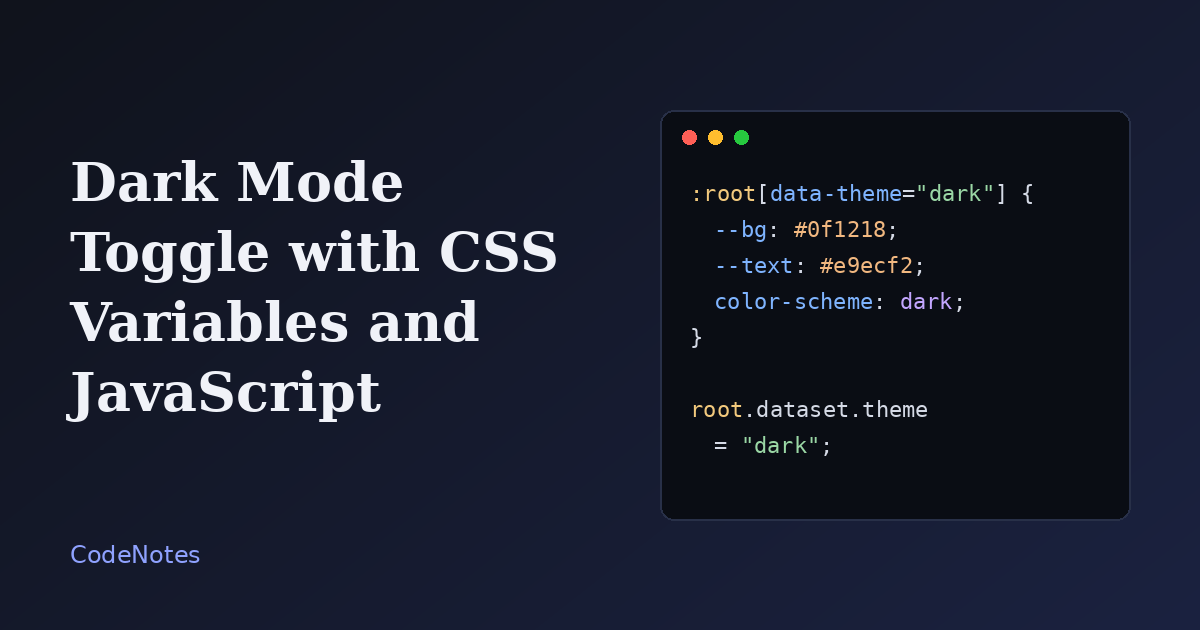
Most dark mode tutorials end at the click handler. The part visitors actually notice comes after: the white flash when a page reloads, or a toggle that forgets what you picked the moment you open another tab.
This version handles both. It starts from the visitor's system setting, saves a manual choice, and sets the theme before the first paint so nothing flickers. It takes a few dozen lines in total, and there are no libraries.
The plan in three rules
The whole approach rests on three ideas, and each one fixes a specific problem.
- Colors live in CSS variables, so a theme is just a different set of values.
- One attribute on the
htmlelement,data-theme, decides which set is active. - A tiny script sets that attribute before the page renders, and the button changes and saves it.
Try the demo below, then open it in its own tab to check that a reload keeps your choice.
The choice is stored in your browser only. Open the demo in its own tab to test the reload behavior.
Step 1: put every color in a variable
Define the light palette on :root and override the same names for dark. Components never mention a hex value; they only use the variables.
:root {
  --bg: #f7f7f5;
  --text: #1f1d1a;
  --muted: #6c675f;
  --card: #ffffff;
  --line: #e2e0da;
  --accent: #2f46c8;
  --on-accent: #ffffff;
  color-scheme: light;
}

:root[data-theme="dark"] {
  --bg: #0f1218;
  --text: #e9ecf2;
  --muted: #9aa3b5;
  --card: #171b24;
  --line: #2a3140;
  --accent: #8fa2ff;
  --on-accent: #0f1218;
  color-scheme: dark;
}

body {
  background: var(--bg);
  color: var(--text);
}

.note {
  background: var(--card);
  border: 1px solid var(--line);
}
Two choices here are deliberate. The dark background is a deep blue-gray and the text an off-white, because pure black behind pure white makes small text shimmer. And color-scheme is not optional: it tells the browser to draw native form fields, scrollbars and default focus rings in the matching theme. Skip it and you get a dark page with a bright white text input.
Step 2: choose the theme before the page paints
A script loaded with defer can run after the browser has already drawn the page. If it picks the theme at that point, a dark-mode visitor sees a light page for a split second. The fix is a small inline script in the head, placed before the stylesheet link, so it runs first and blocks rendering for a fraction of a millisecond.
<head>
  <meta charset="utf-8">
  <meta name="viewport" content="width=device-width, initial-scale=1">
  <title>Reading list</title>

  <script>
    (function () {
      var stored = null;
      try { stored = localStorage.getItem("theme"); } catch (e) {}
      var prefersDark = window.matchMedia("(prefers-color-scheme: dark)").matches;
      document.documentElement.dataset.theme = stored || (prefersDark ? "dark" : "light");
    })();
  </script>

  <link rel="stylesheet" href="/style.css">
</head>
The order of precedence is simple. A saved choice wins. If there is none, the operating system setting decides. This block is written in older syntax on purpose, since it has to work everywhere without a build step.
Step 3: the toggle
The button goes anywhere in the body. Its label and aria-pressed state are updated by the script, so assistive technology reports whether dark mode is on.
<button class="theme-toggle" type="button" data-theme-toggle aria-pressed="false">
  Switch to dark
</button>
<script src="/script.js" defer></script>
Save the logic as script.js at your site root.
const root = document.documentElement;
const button = document.querySelector("[data-theme-toggle]");
const system = window.matchMedia("(prefers-color-scheme: dark)");
const KEY = "theme";

function readChoice() {
  try {
    return localStorage.getItem(KEY);
  } catch {
    return null;
  }
}

function saveChoice(value) {
  try {
    localStorage.setItem(KEY, value);
  } catch {
    // Storage can be blocked. The toggle still works for this visit.
  }
}

function apply(theme) {
  root.dataset.theme = theme;
  button.setAttribute("aria-pressed", String(theme === "dark"));
  button.textContent = theme === "dark" ? "Switch to light" : "Switch to dark";
}

apply(root.dataset.theme || "light");

button.addEventListener("click", () => {
  const next = root.dataset.theme === "dark" ? "light" : "dark";
  apply(next);
  saveChoice(next);
});

system.addEventListener("change", (event) => {
  if (readChoice()) return;
  apply(event.matches ? "dark" : "light");
});
The first apply call does not decide anything. It reads the attribute the inline script already set and brings the button label in line with it. Only a click saves a choice, which matters for the last listener: it follows the system setting live, but only while the visitor has not picked a theme themselves.
Common problems and how to fix them
A white flash appears on reload
Almost always the theme is being set from a deferred or end-of-body script. Move the small block from step 2 into the head, above the stylesheet, and the flash goes away. If you are using a framework that renders on the server, the same rule applies: the attribute has to be on the html element in the first HTML the browser receives.
The page ignores my system setting
This usually means a stale value is stored. If you tested the toggle once, localStorage now holds that choice and it will beat the system preference forever. Clear the theme key in your browser's storage panel while testing, or add a third "system" option if you want visitors to be able to go back.
localStorage throws an error
In some private browsing modes and with strict privacy settings, touching localStorage raises an exception, and an uncaught error stops the rest of your script. That is why every read and write above sits inside try and catch. The cost of a failed save is that the choice lasts one visit, which is a fair trade.
Images and shadows look wrong in dark mode
Soft grey shadows disappear on a dark background, and a photo with a white background becomes a glowing rectangle. For shadows, use a darker, more opaque color in the dark set. For images, use transparent PNG or SVG where you can, and add filter: brightness(0.92) to photos that feel too bright.
The button label says the opposite of what is on screen
The label and the theme must change together. Keeping both inside one apply function, as in the script above, means there is no path where one updates without the other.
Using it in your own project
Keep the files in a layout like this, and link them from the site root so the paths work on every page, nested or not:
/index.html
/style.css
/script.js
Add new colors as variables in both blocks of style.css and the toggle needs no changes. If a color looks wrong in one theme, you know exactly where to look: the variable, not the component.